Add arrows and numbers, and hide private info, on any screenshot
Draw on a screenshot to point at the exact place to tap, and hide emails or phone numbers before you share it.
Free · no sign-up · your images never leave your device
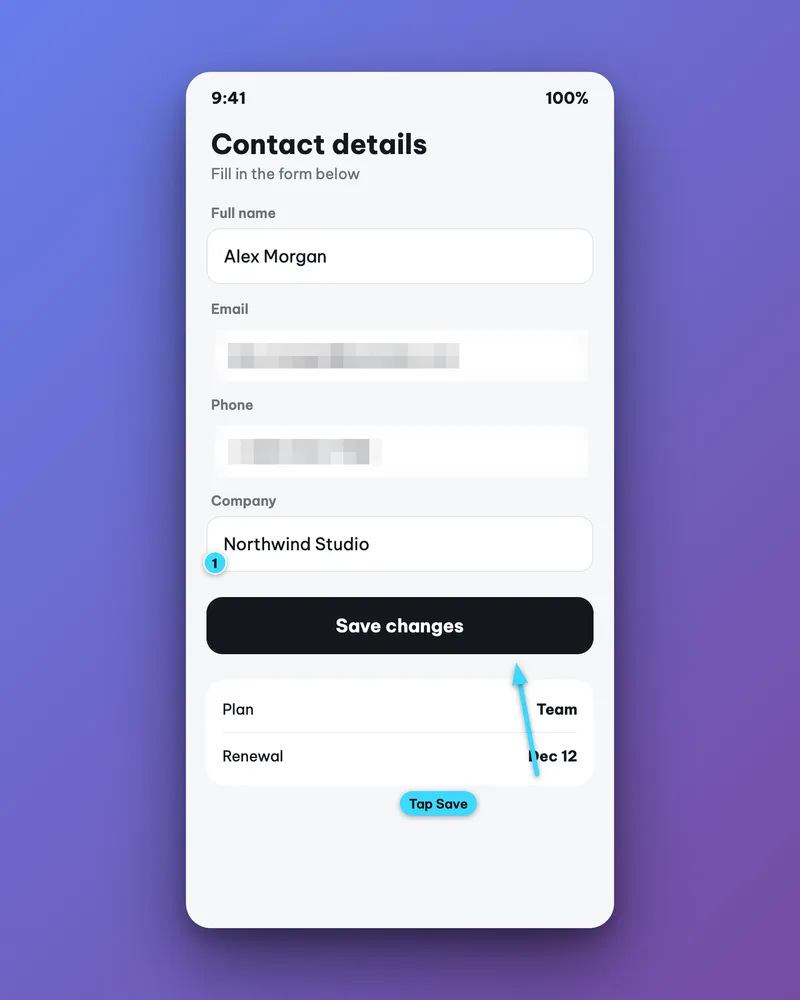
A good how-to image shows people the right place in the right order. Hiding personal information is a step worth doing before you post.
Make it in 3 steps
- Add your imagePaste or pick a screenshot, then open the Annotate tab.
- Pick a tool and drag on the imageThere are arrows, boxes, numbers, text notes, spotlight and zoom. Drag on the image to draw.
- Hide sensitive infoChoose Blur or Pixel and drag over emails, phone numbers and names. Then download.
When to use it
- Software tutorials: number the steps right on the image.
- Bug reports for a colleague: circle the exact spot and add a short note.
- Sharing a screenshot that has real data while still hiding names, emails and phone numbers.
Tips for content creators
- Hide before you post: names, emails, phone numbers, account numbers, codes and access keys.
- For sensitive information use Pixel instead of a light blur, then look at the exported image yourself.
- Number the steps in the order of the actions. Three to five annotations per image is usually enough.
- Spotlight darkens everything except one area so people look only there. Zoom enlarges a small detail.
- For a tutorial post on LinkedIn or Facebook, use the Link size, 1200x628, or Portrait 4:5.
Common mistakes
- Annotations that cover the important text. Put arrows and numbers in empty areas.
- Using too many colors and tools, which makes the image busy. Pick one or two styles and stay consistent.
- Missing one line of private information. Zoom into the exported image and check it before you post.
Handy while you work
- Hit Copy to put the image on your clipboard, then paste it straight into a post or a message.
- Made a mistake? Undo it. Switch between Light and Dark with the button at the top.
- Posting in several places? Export several sizes at once (square, 4:5, story, wide, link) in one ZIP file.
- Add ShotStage to your Home Screen to open it like an app, even on a weak connection.
Frequently asked questions
Can a blur be reversed?
A light blur can still leave text guessable. For sensitive information choose Pixel, cover an area larger than the text, and check the exported image before you post.
Which annotation tools are there?
Arrow, box, number, text note, blur, pixelate, spotlight and zoom.
Is my image uploaded to a server?
No. Everything happens in your browser.
Can I edit an annotation after I draw it?
Yes. Tap an annotation to select it, then drag it, change its color or size, or delete it. Undo is there if you slip.