Make a before and after image in a few seconds
Pick two images and ShotStage places them side by side with a red Before label and a green After label. Change the labels if you need different words.
Open the Before and After tool
Free · no sign-up · your images never leave your device
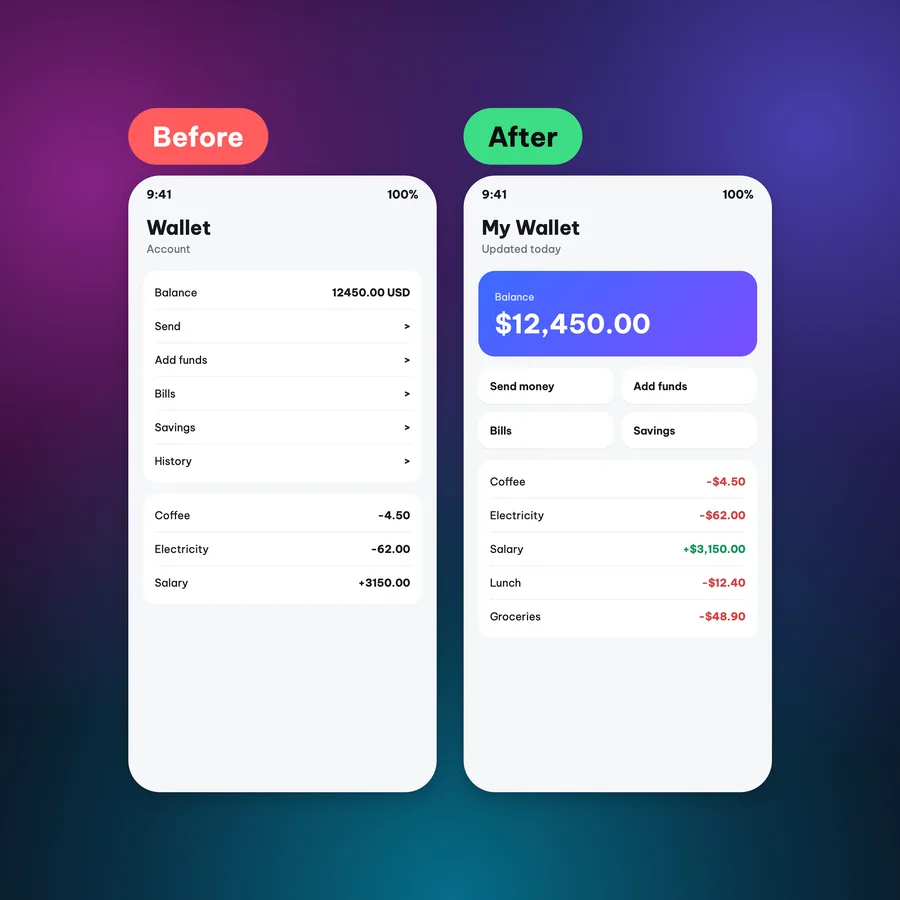
A comparison shows the result without a long explanation. What is left is putting both images in the same frame so they are easy to compare.
Make it in 3 steps
- Pick two imagesChoose the Before image, then the After image. You can select both at once.
- Choose the layoutSide by side or stacked. Edit the labels if you want.
- DownloadChoose a size, then tap Download.
When to use it
- Show the result of a redesign, a design fix or a rewritten post.
- Compare an old and a new version of a website or an app.
- Show off a change to a product, a room or a workspace.
Tips for content creators
- Two images from the same angle and at the same ratio compare best.
- Place portrait images side by side and landscape images stacked.
- Square 1080x1080 suits most feeds. Portrait 4:5 (1080x1350) takes more room on Instagram.
- Change the labels to Old and New, Before fix and After fix, or version names when you need to.
- It works for interface shots, design work, room layouts and products.
Common mistakes
- Two photos taken from different angles, so they are hard to compare. Retake them from the same angle.
- Two images with different ratios, and one gets cropped and loses the important part. Crop them to the same ratio first.
- A label that covers the part worth seeing. Choose another layout or shorten the label text.
Handy while you work
- Hit Copy to put the image on your clipboard, then paste it straight into a post or a message.
- Made a mistake? Undo it. Switch between Light and Dark with the button at the top.
- Posting in several places? Export several sizes at once (square, 4:5, story, wide, link) in one ZIP file.
- Add ShotStage to your Home Screen to open it like an app, even on a weak connection.
Frequently asked questions
Can I change the labels?
Yes. The default is Before and After. Type any text you like.
Side by side or stacked?
Both are available. Choose in the Layout tab.
What if the two images have different ratios?
ShotStage puts both in a frame of the same size. Cropping them to the same ratio first gives a tidier result.
Do I need to sign up or pay?
No. It is free and needs no account.