Make your screenshots look great for social media, free
Paste a screenshot and ShotStage adds a background, a window frame and a soft shadow, then exports an image that is ready to post. It works on your phone too.
Free · no sign-up · your images never leave your device
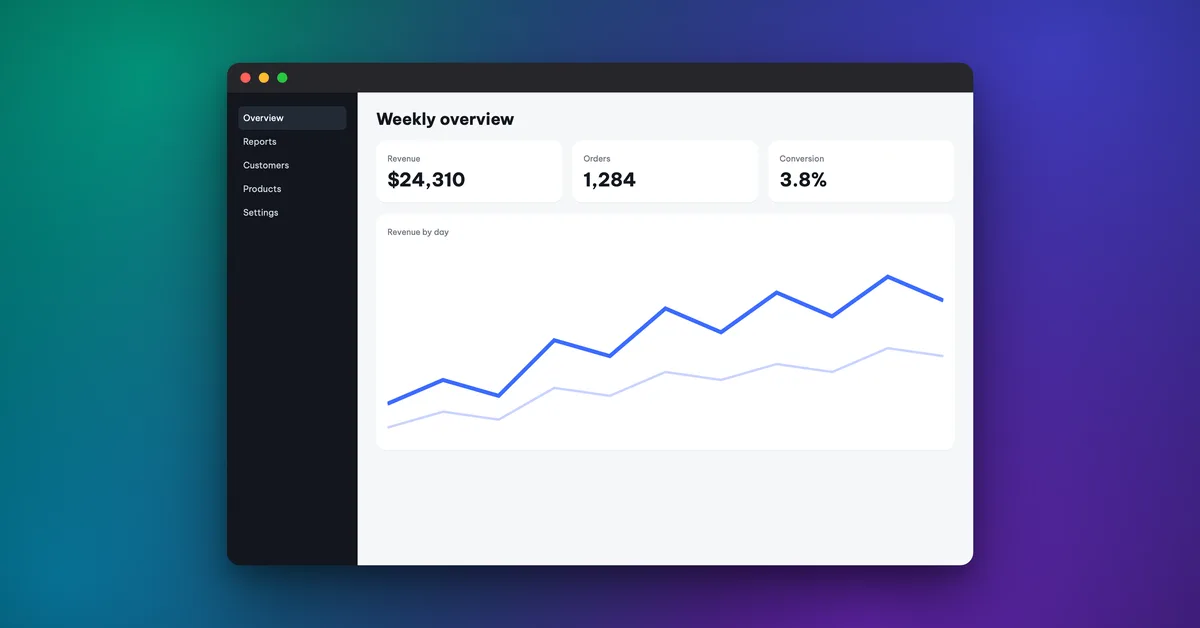
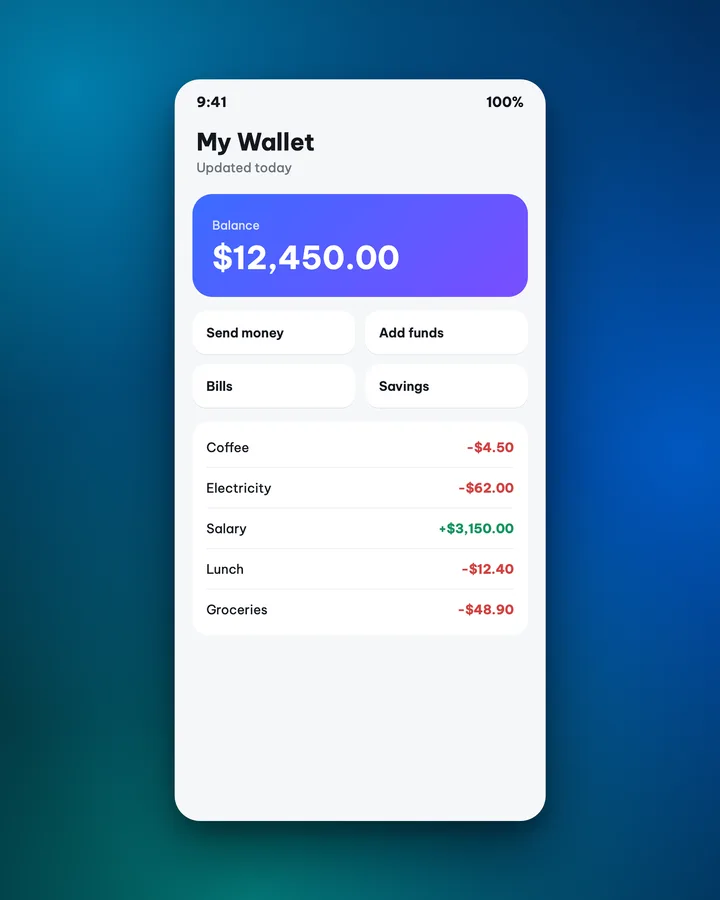
A raw screenshot looks flat and is hard to read in a feed. Add a background and a frame, and the image stands out and tells people where to look.
Make it in 3 steps
- Add your screenshotPaste it from your clipboard, drag it in, or pick it from your device.
- Pick a backgroundUnder Suggestions for this image, the app proposes backgrounds that match the colors in your screenshot. Tap the one you like.
- Choose a size and downloadPick a size for where you will post, then tap Download. You can export PNG or JPG.
When to use it
- Share the result of a tool or a workflow on LinkedIn, X or in a team chat.
- Publish a how-to post: step screenshots look tidier with a frame and a background.
- Send a demo to a client or a colleague in a single image that is easy to read on a phone.
Tips for content creators
- Instagram feed: choose Portrait 4:5 (1080x1350). Stories and Reels: 1080x1920.
- Facebook and LinkedIn link posts: use the Link size, 1200x628, close to Facebook's 1200x630 and LinkedIn's 1200x627.
- X: 1600x900.
- Crop out the status bar and notifications before you add the image, so people only look at what you want them to see.
- If the screenshot is busy, pick a simple background. If it has a white background, pick a colored one so it does not blend in.
Common mistakes
- Capturing the notification bar, battery and clock, which adds noise. Crop it out first.
- Choosing a background so loud that the screenshot sinks. Start minimal and change it only if it feels flat.
- Posting an image that still shows names, emails or phone numbers. Hide them before you publish.
Handy while you work
- Hit Copy to put the image on your clipboard, then paste it straight into a post or a message.
- Made a mistake? Undo it. Switch between Light and Dark with the button at the top.
- Posting in several places? Export several sizes at once (square, 4:5, story, wide, link) in one ZIP file.
- Add ShotStage to your Home Screen to open it like an app, even on a weak connection.
Frequently asked questions
Is my image uploaded to a server?
No. ShotStage processes the image in your browser, on your device. The image never leaves it.
Do I need to sign up or pay?
No. It is free and needs no account.
Does the exported image carry a ShotStage logo?
No. You can add your own text or logo as a mark if you want one.
Does it work on a phone?
Yes. The interface has a phone layout, and you can add ShotStage to your Home Screen like an app.
How do I hide an email or a phone number in the image?
Use the Annotate image type, which has blur and pixelate tools. See the Annotate a screenshot page below.